Unselect Missing References
The compile error in hidden module determine path in Excel can also occur if your file contains a reference to object library/type library, which is labelled as Missing. You can locate, check, and uncheck the references marked as ‘Missing’ to fix the issue. Here are the steps:
- Open your Excel and press Alt + F11 keys.
- The Visual Basic Editor is displayed.
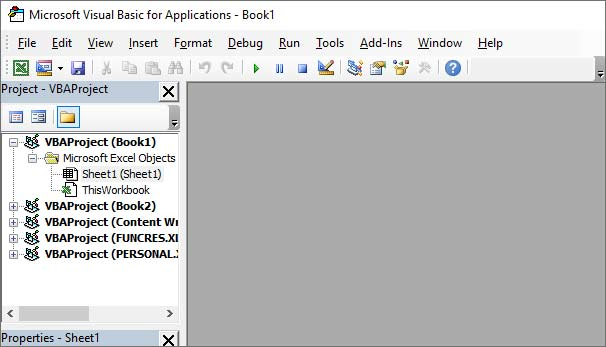
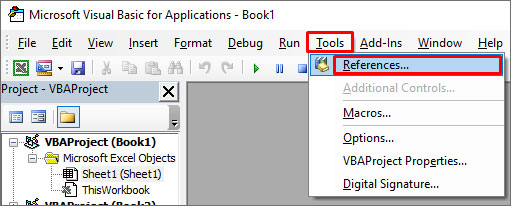
- Go to the Tools option and then click References.
- In the References-VBAProject window, under Available References, search and unselect the references starting as “Missing”.
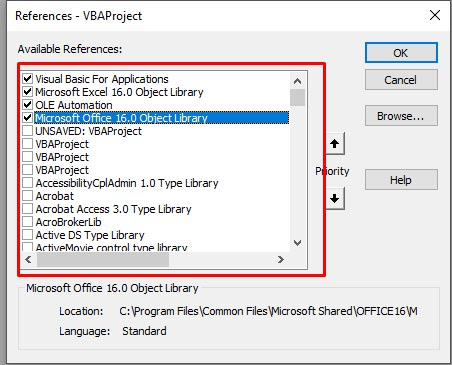
- Click OK.
Check and Remove Add-ins
In Excel, the compile error in macro-enabled files can also occur due to incompatible add-ins. You can check and disable the add-ins in Excel using the below steps:
- First, open the Run window and type excel /safe and then click OK. The Excel application will open in safe mode.
- Now try to open the affected Excel file. If it opens without the error, then check and remove the latest installed Excel add-ins.
- Navigate to the File option and then select Options.
- In the Excel Options window, click Add-ins.
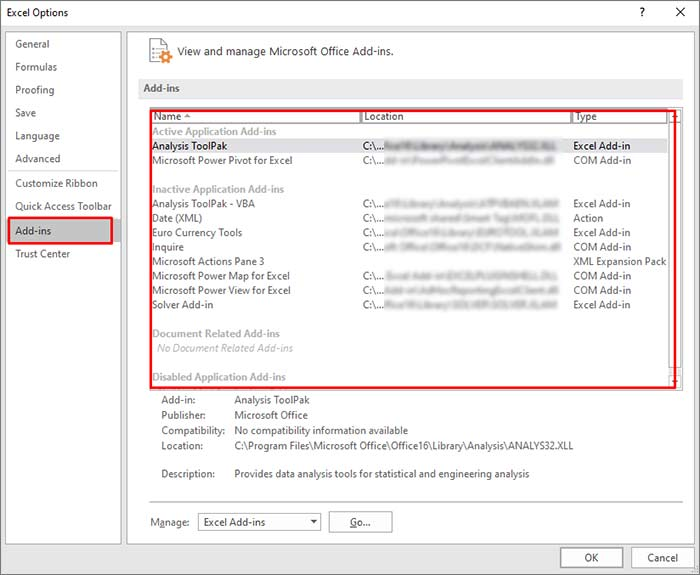
- Under Add-ins, search and select the latest add-ins, and then click on Go.
- In the Add-ins window, uncheck the add-ins and then click OK.
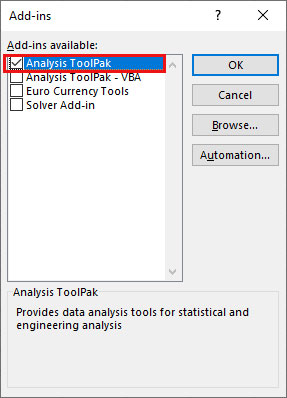
- Restart Excel and then check if the error is fixed or not.
for more info and method visit:
Resolve Compile Error in Hidden Module in Excel: Causes & Solutions (stellarinfo.com)