- Open a new command prompt instance.
- Type the following command
ForFiles /p "C:\My Folder" /s /d -30 /c "cmd /c del @file"
Substitute C:\My Folder with your folder path and the amount of days with desired values and you are done.
For example, to remove the files older than a month from the Downloads folder, use the following command:
ForFiles /p "%userprofile%\Downloads" /s /d -30 /c "cmd /c del @file"
This trick works in all modern versions of Windows including Windows 7, Windows 8, Windows 8.1 and Windows 10.
Delete Files Older Than X Days Automatically
You can automate this task using the built-in Task Scheduler app.
- Open Administrative tools and click on the Task Scheduler icon.
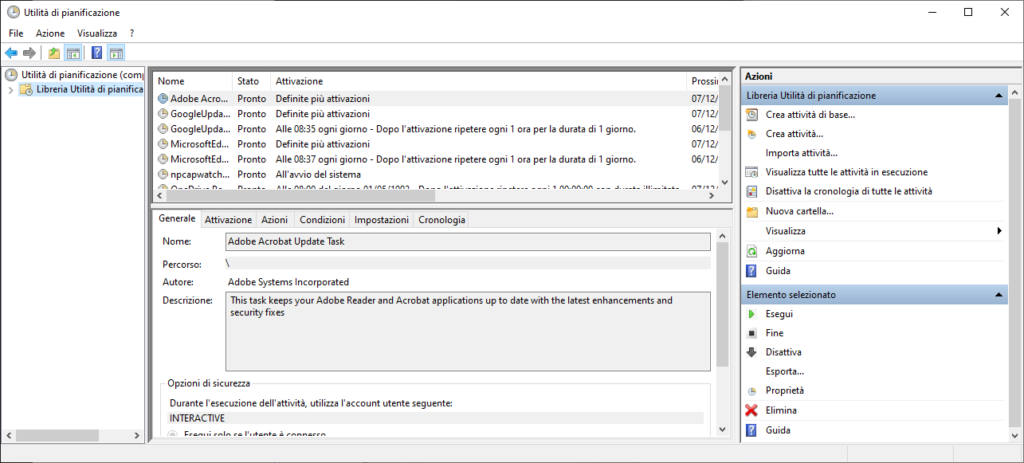
- In the left pane, click the item “Task Scheduler Library”:
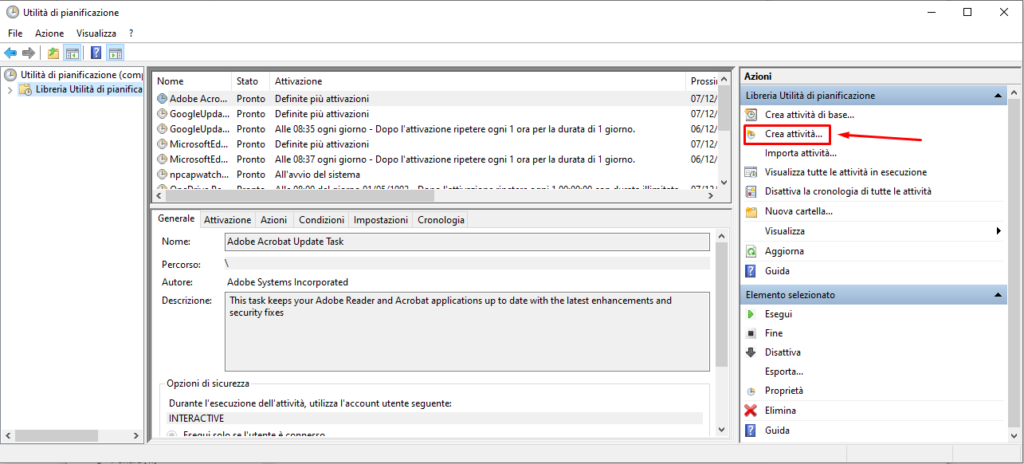
3. In the right pane, click on the link “Create task”:
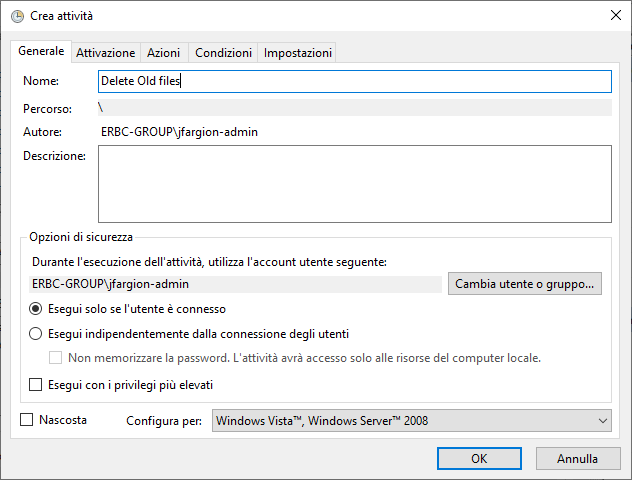
4. A new window titled “Create Task” will be opened. On the “General” tab, specify the name of the task. Pick an easily recognizable name like “Delete Old Files”.
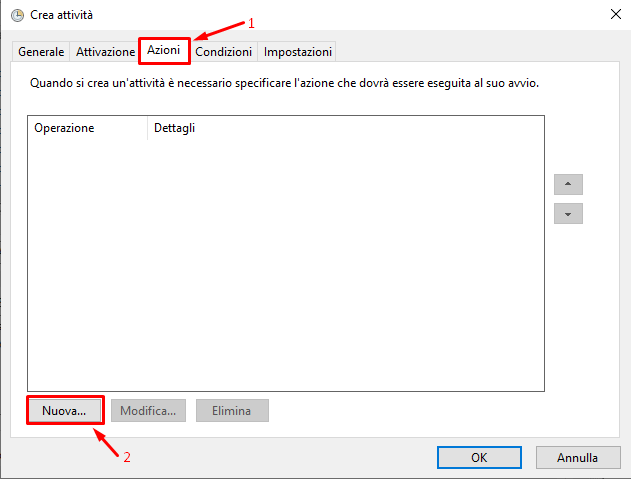
5. Switch to the “Actions” tab. There, click the “New…” button:
6. The “New Action” window will be opened. There, you need to specify the following data.
Action: Start a program
Program/script: ForFiles.exe
Add arguments(optional): /p "%userprofile%\Downloads" /s /d -30 /c "cmd /c del @file"
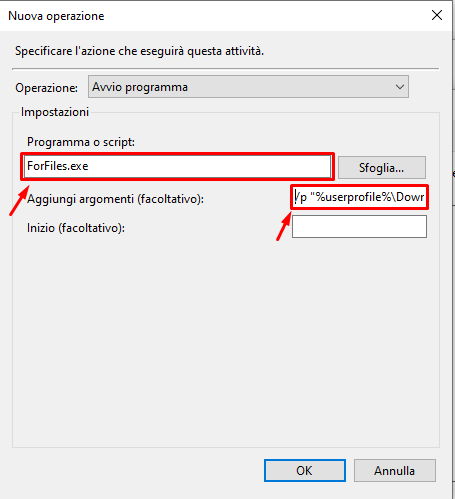
Change the folder path and the number of days to what you need.
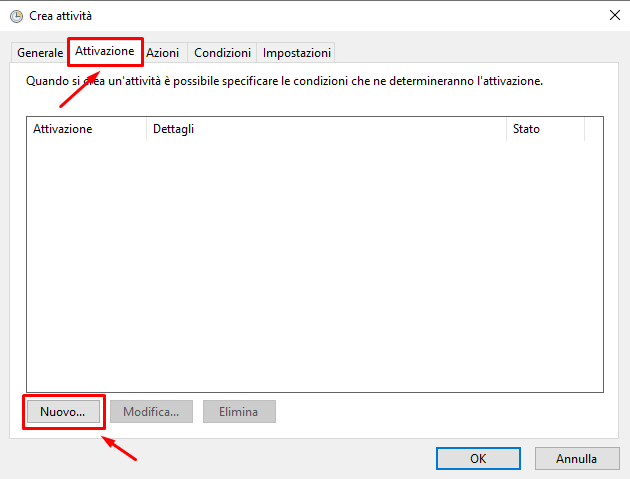
7. Go to the Triggers tab in your task. There, click on the New button
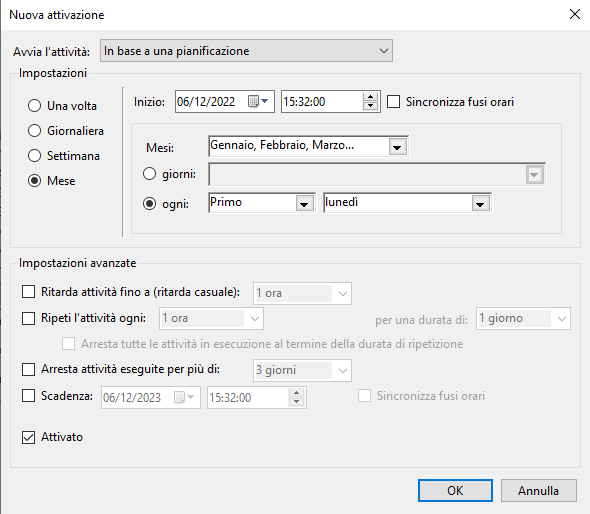
8. Under Begin the task, select “On a schedule” in the drop down list and click the OK button. Specify when you want the task to run.
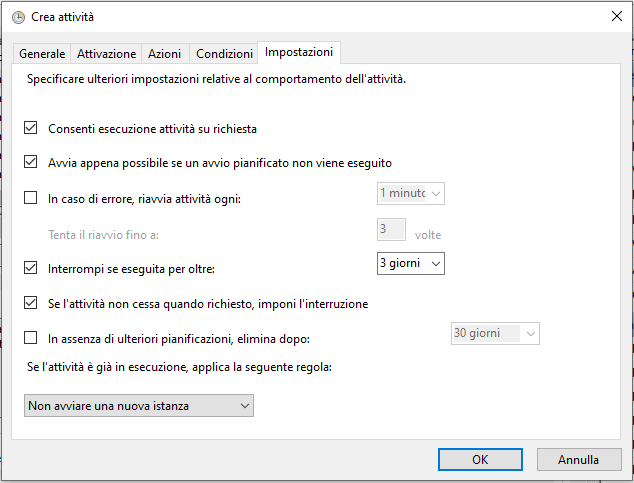
9. Switch to the “Settings” tab. Enable the options
– Allow task to be run on demand.
– Run task as soon as possible after a scheduled start missed.
10. Click OK to create your task.
That’s it.
per utilizzare i percorsi UNC e per eliminare anche le cartelle utilizzare il seguente comando
PushD “\\fileserver\TRANSITO\temp” &&(forfiles -s -d -30 -c “cmd /c IF @isdir == TRUE rd /s /q @path”) & PopD