Change Default Lid Close Action in Command Prompt
- Open a command prompt.
- Type the following command to change the lid close action when on battery:
powercfg -setdcvalueindex SCHEME_CURRENT 4f971e89-eebd-4455-a8de-9e59040e7347 5ca83367-6e45-459f-a27b-476b1d01c936 <ACTION_ID>.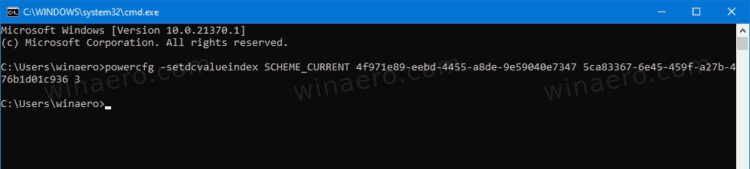
- To do the same for Plugged in, type the command:
powercfg -setacvalueindex SCHEME_CURRENT 4f971e89-eebd-4455-a8de-9e59040e7347 5ca83367-6e45-459f-a27b-476b1d01c936 <ACTION_ID>.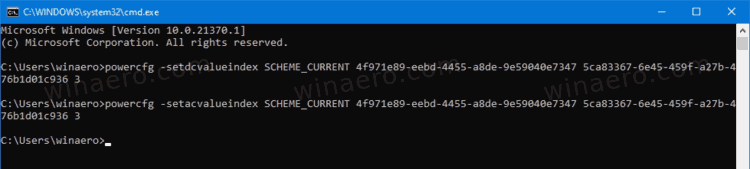
- Replace
<ACTION_ID>with the appropriate value from the table below, and hit the Enter key to run the command. - Now, type and run the command
powercfg -SetActive SCHEME_CURRENTto make Windows 10 apply the power scheme change, and you are done.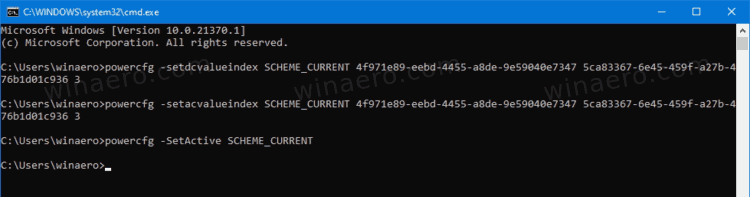
Pick the required ACTION_ID value from this table.
| ACTION_ID | Action |
|---|---|
| 0 | Do nothing |
| 1 | Sleep |
| 2 | Hibernate |
| 3 | Shut down |
Here’s how you can specify the default close lid action for the specific Power Plan using the command prompt and powercfg.
Set Lid Close Action for Specific Power Plan in Command Prompt
- Open a command prompt.
- Type and run the
powercfg /Lcommand to list the available power schemes. The active power plan has * to the right of its name.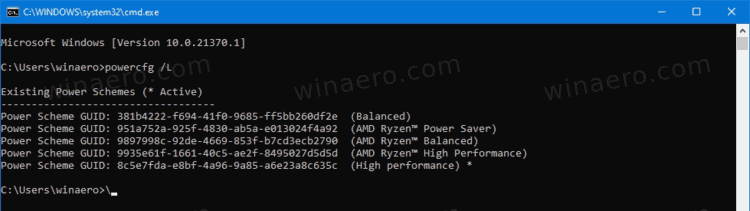
- Make note of the
GUIDvalue, like 8c5e7fda-e8bf-4a96-9a85-a6e23a8c635c of the power plan you want to apply the change to. - Type this command to set the lid close action for the close lid action when on battery:
powercfg -setdcvalueindex <GUID> 4f971e89-eebd-4455-a8de-9e59040e7347 5ca83367-6e45-459f-a27b-476b1d01c936 <ACTION_ID>.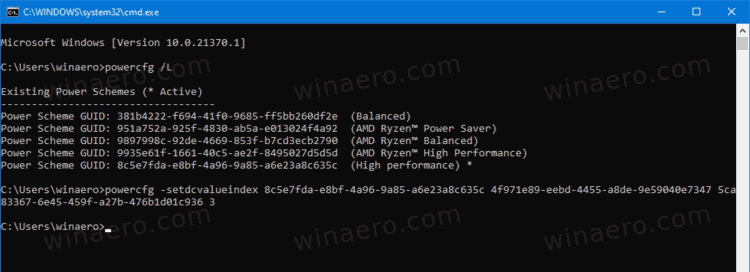
- The following command changes the lid close action for Plugged in:
powercfg -setdcvalueindex <GUID> 4f971e89-eebd-4455-a8de-9e59040e7347 5ca83367-6e45-459f-a27b-476b1d01c936 <ACTION_ID>.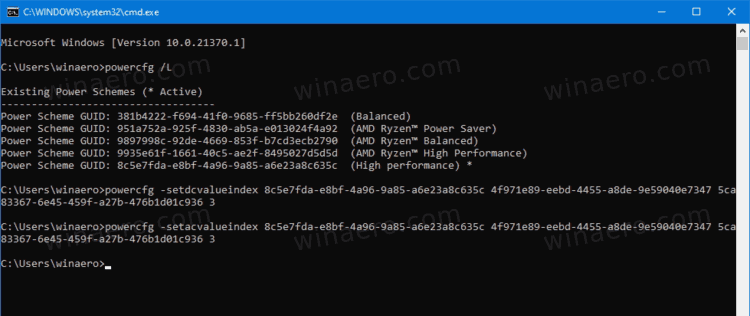
- Replace <GUID> with the power scheme GUID value you noted. Replace
<ACTION_ID>from the table in the previous chapter. - Restart your computer to make Windows 10 apply the change.